
Introduction
Assign Objects to Categories is a rule module in the FEAST Preparation Suite. Each question shows an example and a row of options. You choose the option that belongs with the example under the instruction for that round.
The task
The intro names the task. It can say to sort shapes by color, sort shapes by shape, sort numbers by color, or sort numbers by range. Shapes are colored outlines such as a circle or a triangle. Numbers sit in ranges, from 0 to 249, 250 to 499, 500 to 749, and 750 to 999. Match the example on the property the intro names.
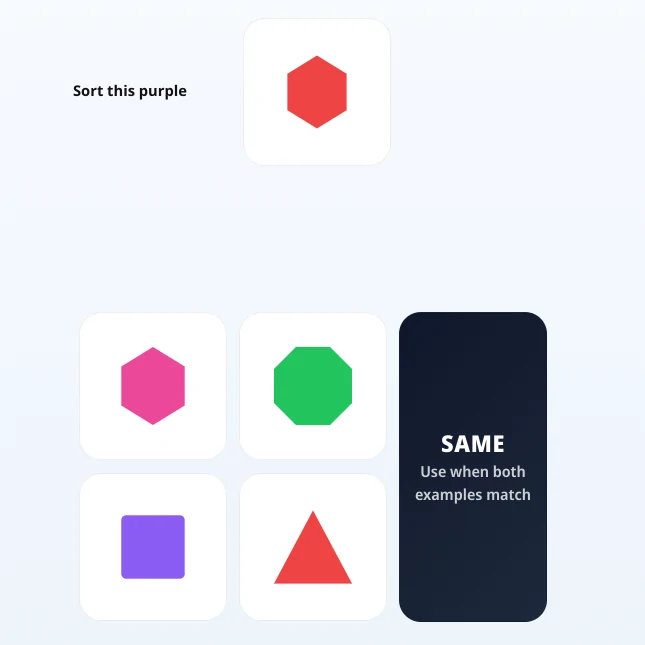
A standing rule can change that match. A color or a number range stays singular, as in “Sort all blue as red” or “Sort all 0-249 as 250-499”. A shape takes a plural, as in “Sort all circles as triangles”. On EASY at most one standing rule is showing. From Medium, several can be on screen together, and on Hard and TEST the cap is three. A standing rule can also drop off with nothing new in its place. Those rules are hidden on a SAME question and on a “Sort this” question, then they come back on a later question. A “Sort this” rule names the category for that question only, such as “Sort this red”, “Sort this circle”, or “Sort this 250-499”, and that choice overrides the example.
Some questions show two examples. When those two already match, press SAME. A wrong option and an answer that arrives after the window closes both count as incorrect.
Difficulty runs from EASY, through Medium and Hard, to TEST. The task stays the same throughout. Read the intro, apply the rules that are actually on screen, and pick the matching option.
Priorities
Read the intro before the example, because the same red circle is a color match in one round and a shape match in the next. On a normal question, apply every standing rule that names something on the example. On a SAME question and on a “Sort this” question those standing rules are off the screen, then they return later. A “Sort this” line names the category to pick and overrides the example. If two examples are already the same, SAME is the answer, so look there before you start comparing options.
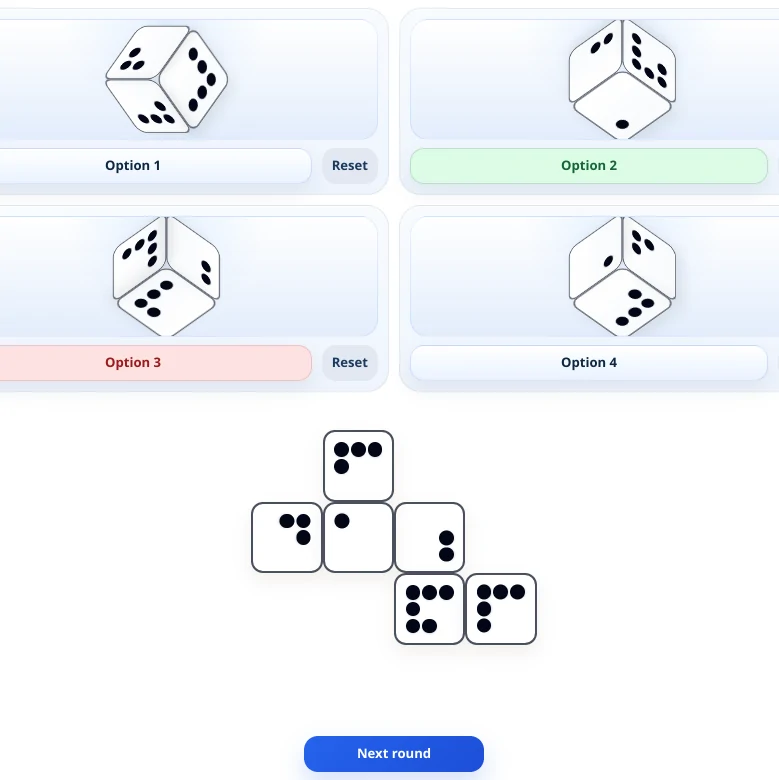
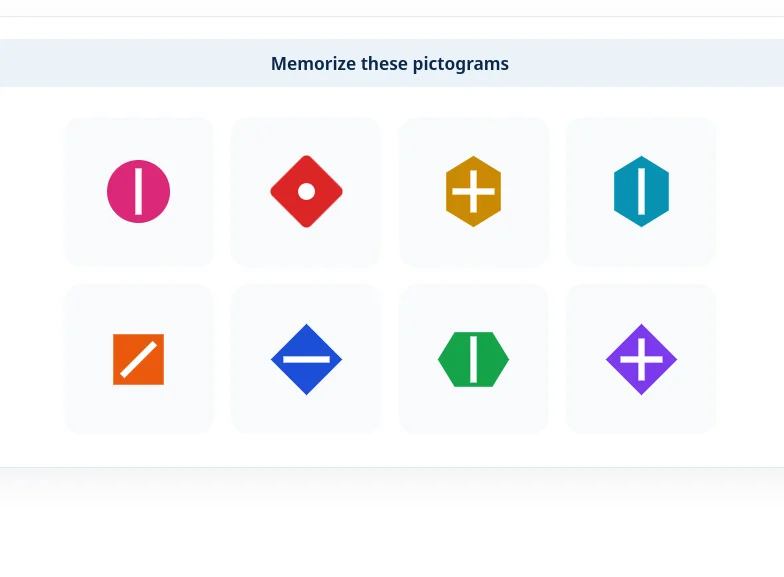
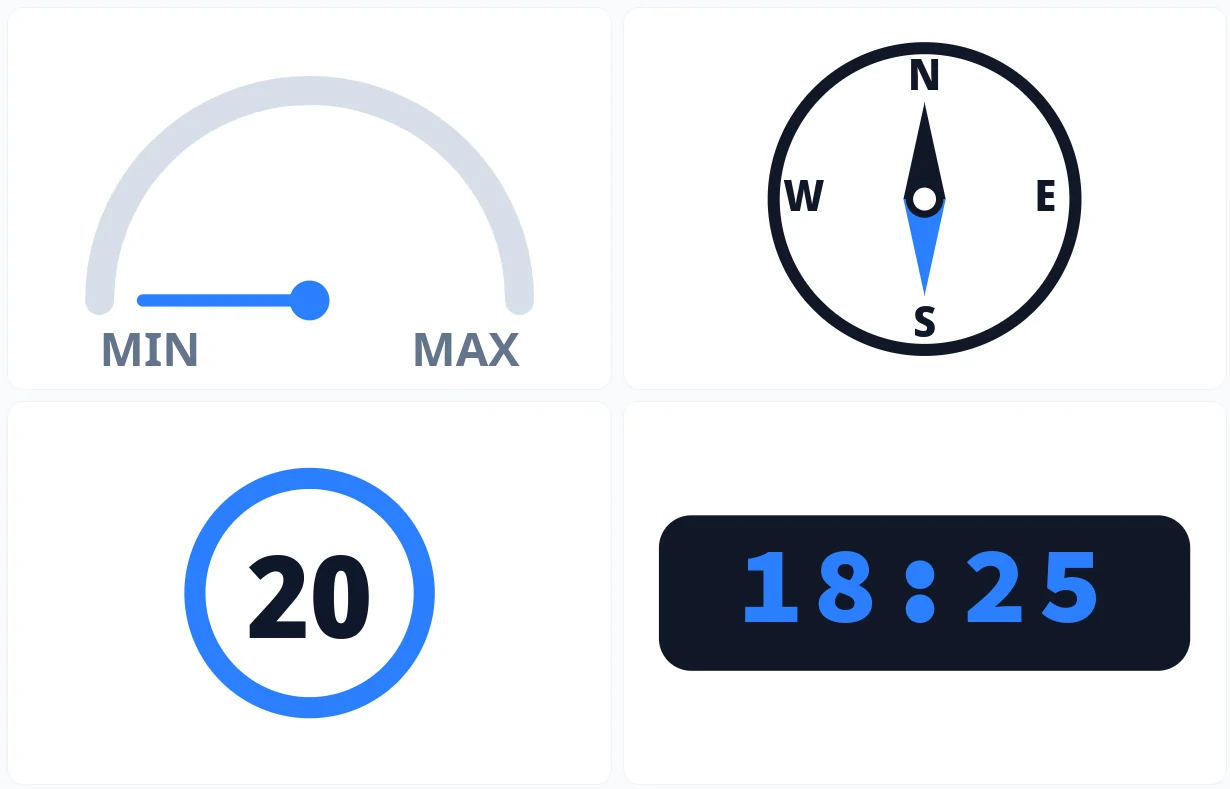
The in-module walkthrough shows a color match, a shape match, SAME, a rewrite rule, and a rule that does not apply to the example before the timed questions begin. Cube Folding, Memorize Pictograms, and Remember Instrument Readings are other FEAST I modules in the suite. A broader overview is available in FEAST Modules Explained.
Disclaimer: FEAST Preparation Suite is an independent training tool designed to support candidates preparing for air traffic controller assessments. This product is not affiliated with, endorsed by, or officially connected to EUROCONTROL or the FEAST test. FEAST is a registered trademark of EUROCONTROL. All training modules are original and independently developed. The exercises included in this product are designed to strengthen the core ability areas important for air traffic controller screening. While some modules may resemble the style of tasks candidates can encounter during selection, they are not intended to simulate, reproduce, or replicate any official test.